
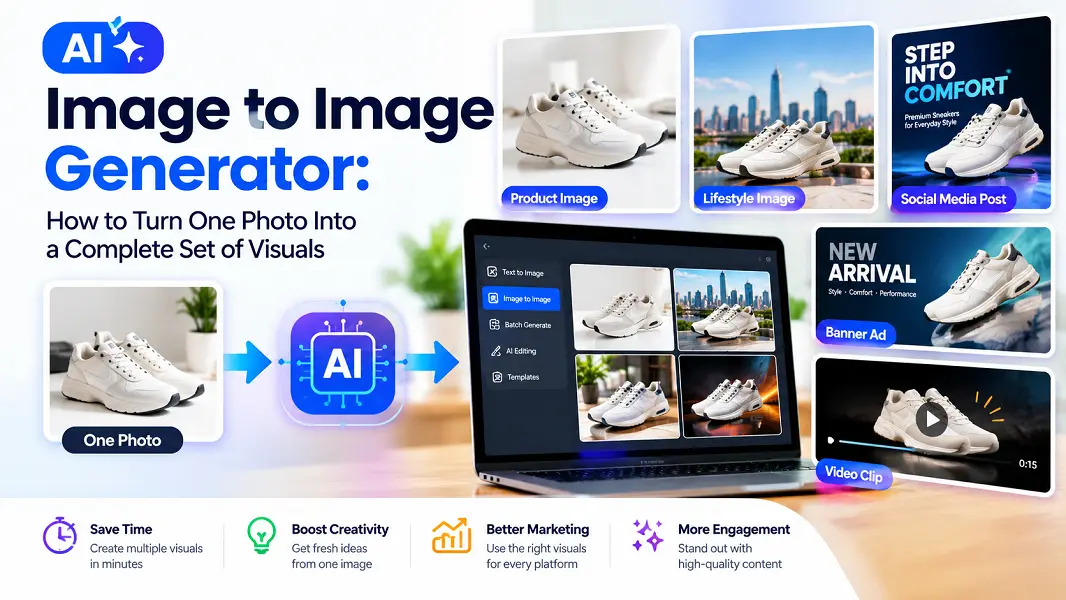
Most businesses and creators don’t struggle to get one good photo. They struggle to get everything they need from it: a clean product shot, lifestyle scenes, social posts, a campaign image with text and perhaps a short video. Organizing a separate shoot or design job for each asset takes time and budget that small teams rarely have.
An image-to-image generator changes that. Instead of starting from zero for every asset, you start from one strong photo and transform it step by step. Animx’s AI Image to Image Generator is built for exactly this: you upload an image, describe the change in plain language and get a new version in seconds, with several leading models in one workspace and no per-model subscriptions.
This article walks through a practical workflow for turning a single photo into a complete visual set, plus tips for keeping the series consistent and a checklist to run before you publish.
Why One Good Photo Is Enough to Start
A text-to-image generator invents everything from your description. That’s great for brand-new ideas but less reliable when the details must match something real. An image-to-image generator starts from your actual product, person or place. It reads the uploaded picture, then generates a new version guided by both the image and your prompt. As Animx describes it, the model preserves what you don’t mention and changes what you do.
As a result, your real product stays recognizable while its setting, style or mood changes around it, which is exactly what most marketing and content work requires.
Example Workflow: One Product Photo, Six Kinds of Assets
Imagine a small coffee roaster launching a new bag of beans. They have one decent photo of the bag on a kitchen counter. Here’s how that single image could become a full launch kit.
Step 1: Clean Up the Base Image
Start by fixing what’s distracting. Remove the stray mug and the cable in the background, and let the model rebuild the counter behind them. Flux Kontext Max is designed for surgical, pixel-level edits, which makes it a good fit for careful cleanup like this.
Prompt: “Remove the mug and the black cable on the left, and rebuild the counter surface behind them. Keep the bag, label and lighting unchanged.”
Step 2: Create Lifestyle Scenes
Next, place the bag in settings that tell a story: a sunny café table, a cozy breakfast scene or a rustic wooden shelf. Background swaps replace the environment while keeping the subject’s lighting and pose intact. For photoreal results, Nano Banana Pro offers strong accuracy and prompt fidelity, with 4K output for large placements.
Prompt: “Place the coffee bag on a sunlit café table next to a ceramic cup and a croissant. Keep the bag’s label, colors and shape exactly as they are.”
Step 3: Build a Consistent Series With References
Launch content usually needs a set of images that clearly belong together. With Seedream 4, you can attach up to 10 reference images to a single generation, such as the product photo, a style reference and a setting reference, and let the model compose them into one scene. Reusing the same references across the series keeps the look consistent.
Step 4: Add Campaign Text
A launch post often needs readable words in the image, such as a café chalkboard announcing the new blend or a tag on a display. GPT Image 2 renders readable text inside images, which makes it useful for signs, labels and packaging copy. Put the exact words in quotation marks and check the spelling before publishing.
Prompt: “Add a café chalkboard behind the bag that says ‘NEW: ETHIOPIA SUNRISE’ in white hand-written chalk letters.”
Step 5: Restyle for Different Channels
Not every channel needs a photo. A newsletter might suit a watercolor illustration, while an ad might call for a cinematic film look. Style transfer restyles an image as watercolor, oil paint, anime or a cinematic film look while preserving the original composition, so the product’s placement stays the same in every version.
If a placement needs a different shape, such as a vertical story or a wide banner, use your image as a reference and generate a new composition in that format, then double-check the product details.
Step 6: Bring the Best Shot to Life
When you have a favorite still, send it straight to Animx’s video workspace and animate it. A slow camera push toward the cup or soft morning light drifting across the table can turn a static launch image into a short clip for reels and stories.
In six steps, one photo has become a cleaned-up product shot, several lifestyle scenes, a consistent series, a text-based announcement, channel-specific styles and a short video.
How to Keep a Visual Series Consistent
Consistency is what makes a set of images look like a campaign instead of a random collection. A few habits help:
- Reuse the same references. Keep a small folder of approved product, style and setting images, and attach them every time.
- Keep a prompt library. Save the wording that worked, including the lines that protect the product, such as “keep the label and colors exactly as they are.”
- Chain your edits. Each result can become the input for the next prompt, so you can refine in small steps instead of starting over.
- Change one thing at a time. Swapping the background, lighting and style in one prompt makes results harder to control.
- Use the same model within a set. Different models interpret prompts differently, so switching models halfway through a set of similar images can shift the look.
Image to Image or Text to Image: Which Should You Use?
Animx offers both approaches on one platform, and each has its place:
| Situation | Better choice | Why |
|---|---|---|
| A real product must look accurate | Image to image | The product stays recognizable while the scene changes |
| You need a specific pose or layout | Image to image | It’s easier to show a composition than to describe it |
| You’re exploring a brand-new concept | Text to image | No photo is needed to start |
| You want text added to an existing scene | Image to image | GPT Image 2 can add readable signs and labels |
| You want many very different ideas fast | Text to image | The model can invent freely without matching a source |
Quality Checklist Before You Publish
AI-edited images can look convincing at first glance and still hide small problems. Before anything goes live, check:
- Product accuracy: labels, logos, colors and shapes match the real item.
- Text: every word is spelled correctly and readable at the size it will be shown.
- Edges and details: hands, reflections, shadows and the areas around removed objects look natural.
- Lighting: the subject’s lighting fits the new background.
- Resolution: the file is large enough for its destination, from a phone screen to a printed poster.
- Rights and disclosure: you have permission to use every source image, and AI-edited visuals are labeled where platforms or local rules require it.
What It Costs to Work This Way
Animx is free to start: new accounts receive trial credits on sign-up, with no card needed, so you can test this workflow on your own photos. Every generation shows its credit cost before you click generate, and higher-resolution outputs use more credits. The trial covers basic-tier models, while paid plans add monthly credits, wider model access and commercial rights, with every model included on the Plus and Ultra plans. Plans change, so check the current pricing page for details.
Final Thoughts
An AI image to image generator is most valuable when you treat it as a production tool rather than a novelty. One good photo, a few clear prompts and a consistent set of references can produce a complete visual set in far less time than a traditional shoot. Keep the real product accurate, check every detail before publishing and let the AI handle the repetitive work. On Animx, cleanup, lifestyle scenes, consistent series, readable text and video all happen in one workspace.