
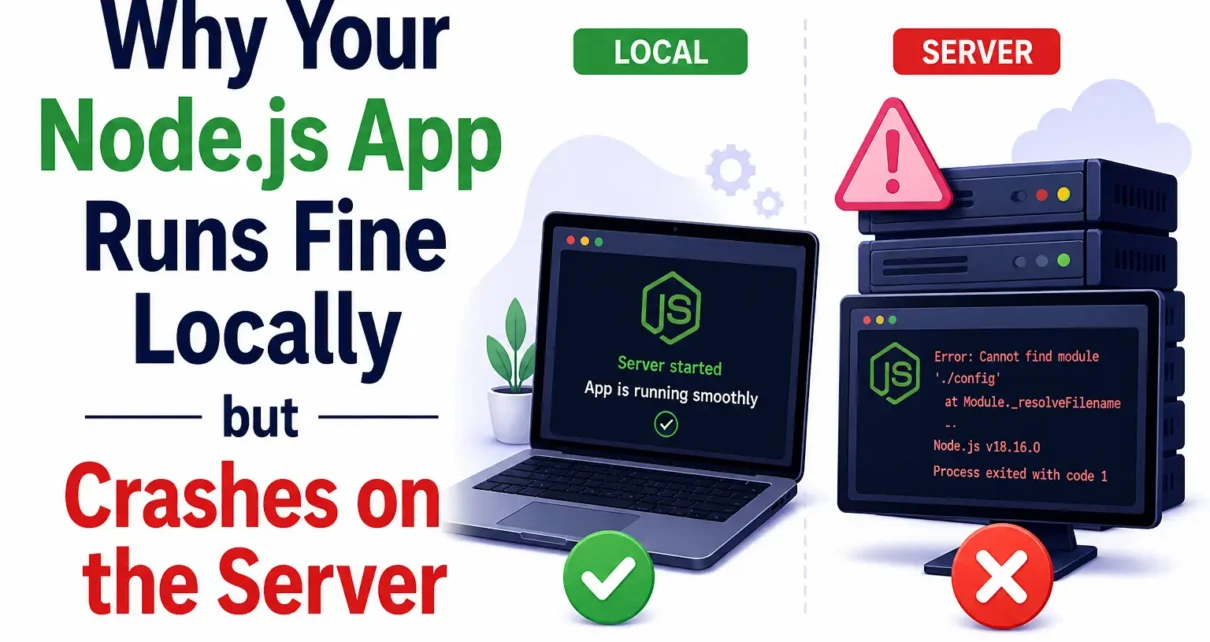
Moving from a local machine to a live server is like taking a prototype car out of a controlled lab and onto a highway. Everything feels smooth on your desktop because you have plenty of resources and zero lag. However, once that code reaches a remote environment, the reality of strict memory limits and different OS behaviors becomes apparent. Finding a reliable Node.js hosting India plan is only the first step; you also have to consider how your code interacts with the underlying infrastructure.
Budget influences performance, as the Django hosting price or Node.js plan you select dictates the CPU and RAM available for your scripts. Resource-intensive tasks that run smoothly on high-performance laptops may overwhelm a standard 1GB virtual server. This mismatch is the primary reason why apps fail unexpectedly shortly after deployment. Aligning your development environment with the technical requirements of your production server prevents these issues.
How to prevent your Node.js process from crashing
When your app fails on your laptop, you simply click ‘restart’ and continue your work. Servers require an automated system to manage intensive background operations. PM2 provides the necessary oversight to ensure your application remains active without manual intervention. It acts like a 24/7 guard for your code; if a random bug or a sudden memory jump causes the process to quit, PM2 restarts it in milliseconds. Implementing a process manager ensures your visitors don’t see a “Service Unavailable” screen just because one user caused a minor glitch.
Good coding is about catching mistakes before they break the whole system. Because Node.js handles everything on one main thread, a single ignored error can bring down the entire application for everyone. You should wrap your asynchronous tasks in try-catch blocks to trap these issues locally. Instead of the process collapsing, you can log the specific problem and send a polite error back to the user. It is also important to double-check your environment variables, such as database credentials, when the app boots up. If something is missing, the app should stop immediately with a clear warning. Implementing health checks prevents you from running a non-responsive website that appears online but fails when a visitor performs an action.
The Hidden Conflict of Case Sensitivity
Windows and Mac generally handle varied file names without issue, but Linux—which powers almost every web server—is more restrictive. If you name a file Auth.js but try to import it as auth.js, your local machine won’t complain. The second that code lands on a production server, it will throw a “Module Not Found” error. This is a classic “works on my machine” headache. Standardizing every file and folder name to lowercase is a simple practice that saves hours of debugging.
“Infrastructure is the foundation of software; even the most elegant code will fail if the environment beneath it is unstable.” — Julian Velez, Backend Engineer.
Memory Management and Leak Detection
In a local environment, memory leaks often stay hidden because you restart the server before they cause issues. In production, a leak is a slow-motion disaster. Each page visit may leave a small amount of unallocated RAM behind. Eventually, the server reaches its limit, and the OS terminates the process. Heap snapshots and profiling tools reveal exactly where your application occupies memory. Monitor RAM usage spikes if your hosting provider provides real-time tracking.
Managing Networking and Reverse Proxies
Local apps often run on port 3000, but web traffic comes in on port 80 or 443. A common mistake is hardcoding the port number in your script. When launching the app, the server may encounter an occupied port or a firewall restriction. Use process.env.PORT to let the server pick an open spot for your app. This keeps your app ready to grow and prevents the code from compromising because it tries to grab a port that was already locked.
Permission Hurdles on Production Files
Servers are locked down for security, meaning your app doesn’t have the elevated permissions it has on your laptop. If your code tries to create a folder for image uploads or write a log file without the right permissions, it will crash immediately. You need to explicitly set directory ownership so the web user can perform these actions. This approach prepares your application for scaling and prevents crashes caused by trying to use a locked port.
- Use .dockerignore: Keep bulky local files out of your server environment to prevent bloat.
- Log to Files: Forget just watching the console; send your logs to a file so you can actually go back and check them later.
- Health Checks: Set up a dedicated route that returns a 200 status so you can verify the service is actually up.
- Graceful Shutdowns: Your application should finish any ongoing database tasks before it stops during a reboot.
- Limit Request Sizes: Prevent “Denial of Service” crashes by capping how much data a user can upload.
Concluding Insights
Moving a Node.js app from your laptop to a live server is all about planning for the things your local machine usually ignores. When you focus on environment variables, smart error handling, and resource management, you turn a basic script into a reliable service that stays online.
MilesWeb manages complex server maintenance tasks, enabling you to prioritize building features. When your code and your hosting work together, your users get a fast and dependable experience every time they visit your website.